import os
import time
import sys
import platform
import argparse
import subprocess
import shutil
import random
import pyCBlueUI
def do_something() :
ui_title = pyCBlueUI.FindControl("title", None)
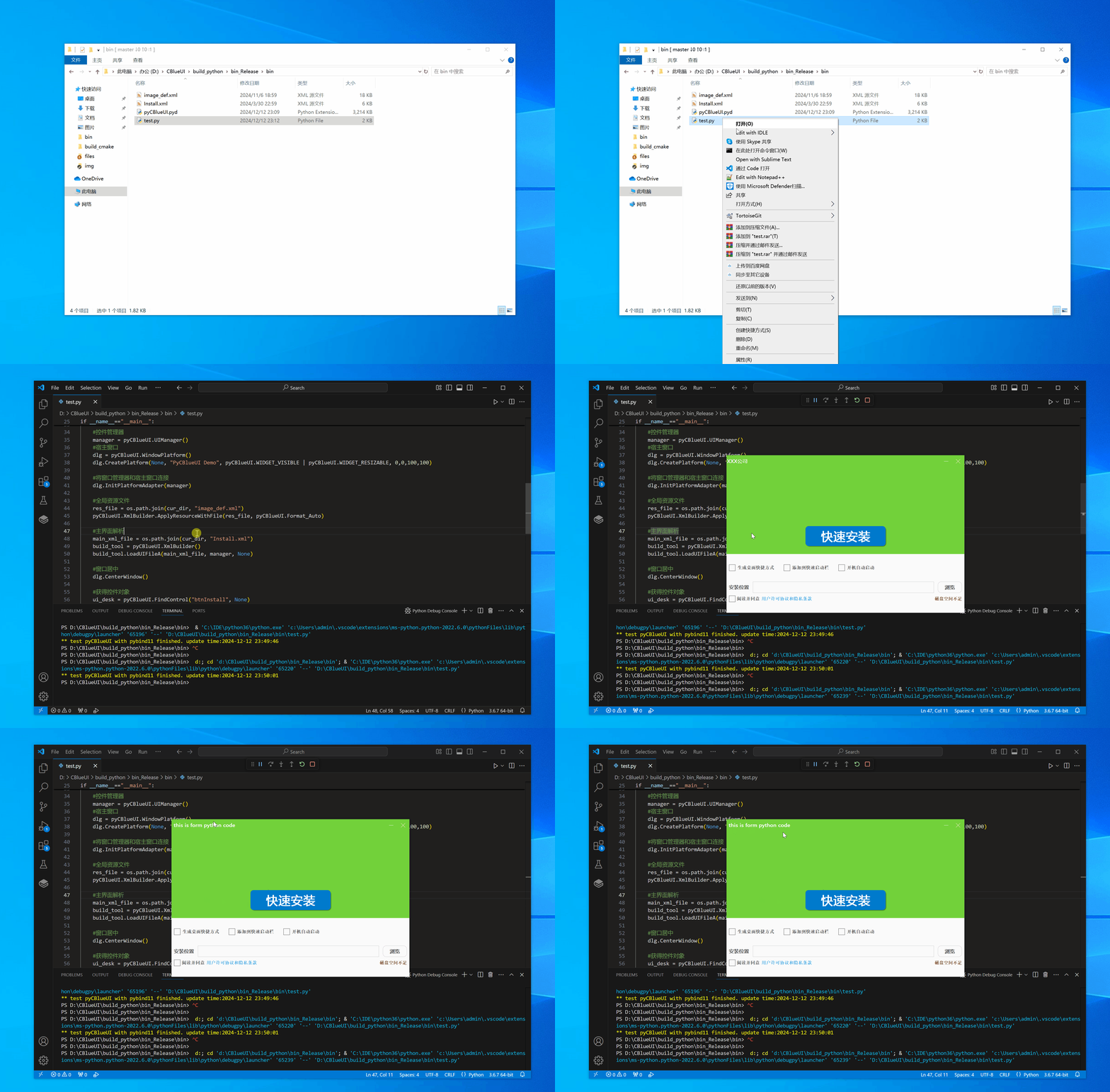
ui_title.ShellAttribute("text", " this is form python code")
ui_title.Refresh()
return 1
if __name__=="__main__":
os.system('')
cur_dir = os.path.abspath('.')
cur_dir = cur_dir.replace('\\','/')
pyCBlueUI.InitializeUISystem()
manager = pyCBlueUI.UIManager()
dlg = pyCBlueUI.WindowPlatform()
dlg.CreatePlatform(None, "PyCBlueUI Demo", pyCBlueUI.WIDGET_VISIBLE | pyCBlueUI.WIDGET_RESIZABLE, 0,0,100,100)
dlg.InitPlatformAdapter(manager)
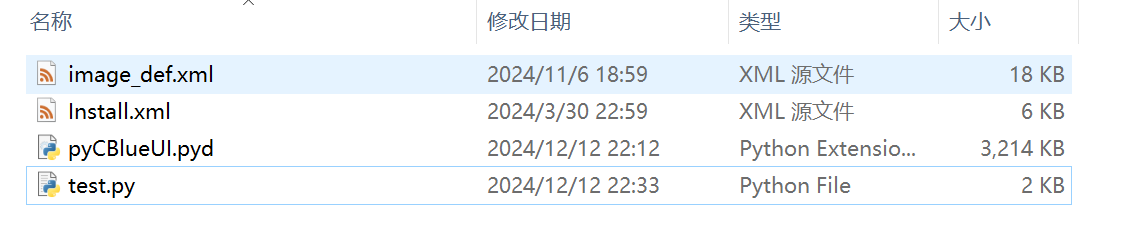
res_file = os.path.join(cur_dir, "image_def.xml")
pyCBlueUI.XmlBuilder.ApplyResourceWithFile(res_file, pyCBlueUI.Format_Auto)
main_xml_file = os.path.join(cur_dir, "Install.xml")
build_tool = pyCBlueUI.XmlBuilder()
build_tool.LoadUIFileA(main_xml_file, manager, None)
dlg.CenterWindow()
ui_desk = pyCBlueUI.FindControl("btnInstall", None)
if ui_desk != None:
str_ids = ui_desk.VarName()
ui_desk.BindAction(do_something)
dlg.DoModal(False)
cur_time = time.strftime('%Y-%m-%d %H:%M:%S',time.localtime(time.time()))
print("\033[33m** test pyCBlueUI with pybind11 finished. update time:{}\033[0m".format(cur_time))

 1.14.0